> ## Documentation Index
> Fetch the complete documentation index at: https://docs.withrelic.com/llms.txt
> Use this file to discover all available pages before exploring further.
# Introduction
> Manage and share secrets. Encrypted on your device, never exposed to anyone else. Not even us.
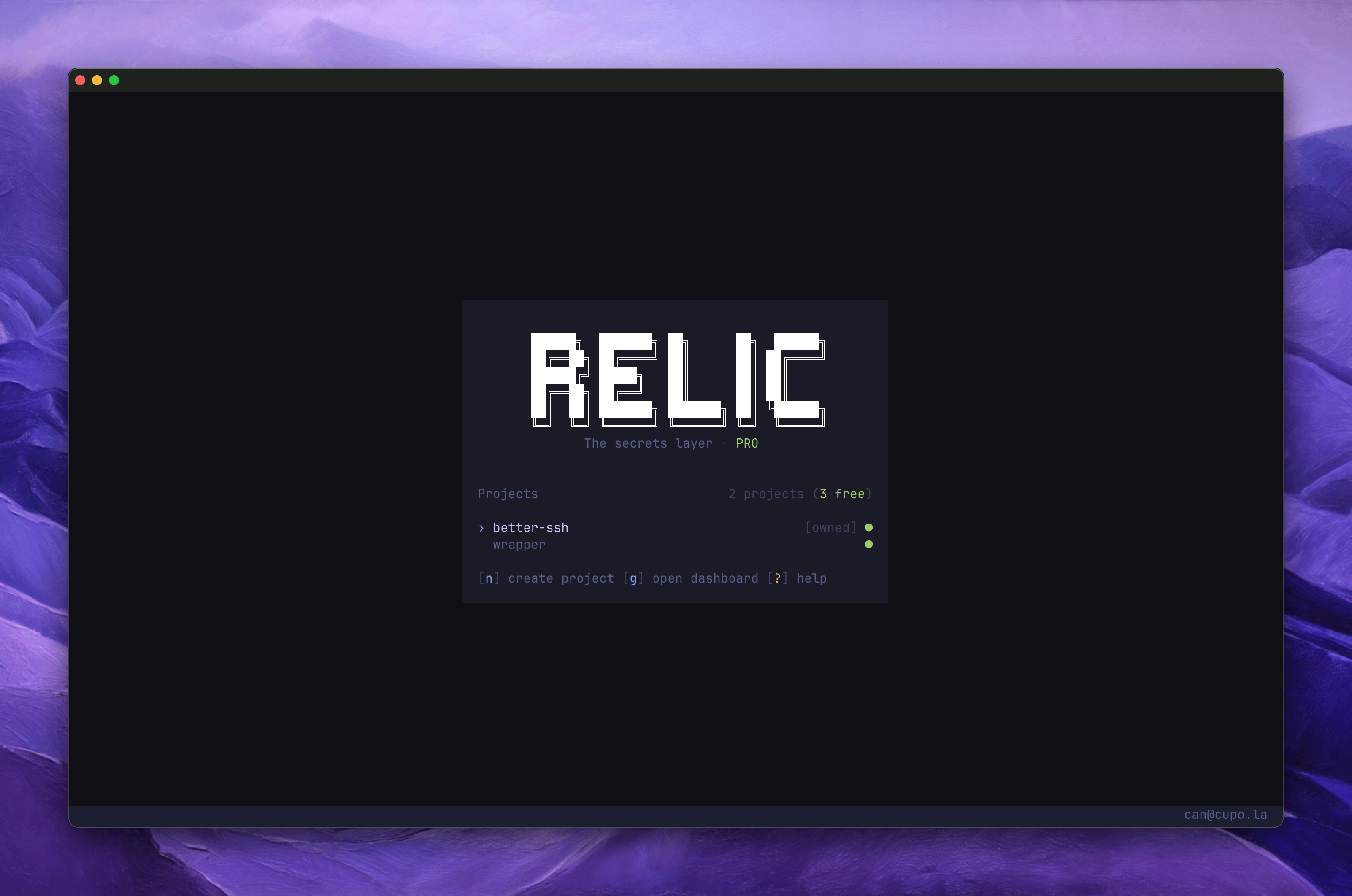
Relic is the secrets layer developers actually trust. Manage and share secrets from the CLI, TUI, or web dashboard while everything stays encrypted on your device.
 ## Prerequisites
Relic runs in the terminal. For the best experience with the TUI, use a modern terminal emulator:
* [Ghostty](https://ghostty.org)
* [Alacritty](https://alacritty.org)
* [Kitty](https://sw.kovidgoyal.net/kitty)
* [WezTerm](https://wezfurlong.org/wezterm)
* [iTerm2](https://iterm2.com)
Other terminals work for the CLI, but may have rendering issues with colors and UI elements in the
TUI.
## Installation
```bash theme={null}
curl -fsSL https://withrelic.com/install | bash
```
```bash theme={null}
brew install heycupola/tap/relic
```
Available on macOS and Linux.
```bash theme={null}
npm install -g relic
```
```bash theme={null}
bun add -g relic
```
You can also download prebuilt binaries from the [GitHub Releases](https://github.com/heycupola/relic/releases) page.
Windows is not officially supported yet. You can use Relic through WSL, but expect issues.
## How Relic Is Organized
Secrets in Relic follow a hierarchical structure:
```
Project
└── Environment (development, staging, production, ...)
├── Secret
├── Secret
└── Folder (optional)
├── Secret
└── Secret
```
* **Project**: A container for all secrets related to an application or service.
* **Environment**: Separates secrets by deployment target. Every project has at least one.
* **Folder**: Optional grouping within an environment. Useful for organizing secrets by service or domain (e.g. `database`, `api`, `web`).
* **Secret**: A key-value pair. The key is stored in plaintext, the value is encrypted with AES-256-GCM.
When you run `relic run -e production`, all secrets in that environment are injected. Add `-f database` to include only secrets from a specific folder.
## Getting Started
Open the TUI and sign in with your Google or GitHub account:
```bash theme={null}
relic
```
## Prerequisites
Relic runs in the terminal. For the best experience with the TUI, use a modern terminal emulator:
* [Ghostty](https://ghostty.org)
* [Alacritty](https://alacritty.org)
* [Kitty](https://sw.kovidgoyal.net/kitty)
* [WezTerm](https://wezfurlong.org/wezterm)
* [iTerm2](https://iterm2.com)
Other terminals work for the CLI, but may have rendering issues with colors and UI elements in the
TUI.
## Installation
```bash theme={null}
curl -fsSL https://withrelic.com/install | bash
```
```bash theme={null}
brew install heycupola/tap/relic
```
Available on macOS and Linux.
```bash theme={null}
npm install -g relic
```
```bash theme={null}
bun add -g relic
```
You can also download prebuilt binaries from the [GitHub Releases](https://github.com/heycupola/relic/releases) page.
Windows is not officially supported yet. You can use Relic through WSL, but expect issues.
## How Relic Is Organized
Secrets in Relic follow a hierarchical structure:
```
Project
└── Environment (development, staging, production, ...)
├── Secret
├── Secret
└── Folder (optional)
├── Secret
└── Secret
```
* **Project**: A container for all secrets related to an application or service.
* **Environment**: Separates secrets by deployment target. Every project has at least one.
* **Folder**: Optional grouping within an environment. Useful for organizing secrets by service or domain (e.g. `database`, `api`, `web`).
* **Secret**: A key-value pair. The key is stored in plaintext, the value is encrypted with AES-256-GCM.
When you run `relic run -e production`, all secrets in that environment are injected. Add `-f database` to include only secrets from a specific folder.
## Getting Started
Open the TUI and sign in with your Google or GitHub account:
```bash theme={null}
relic
```
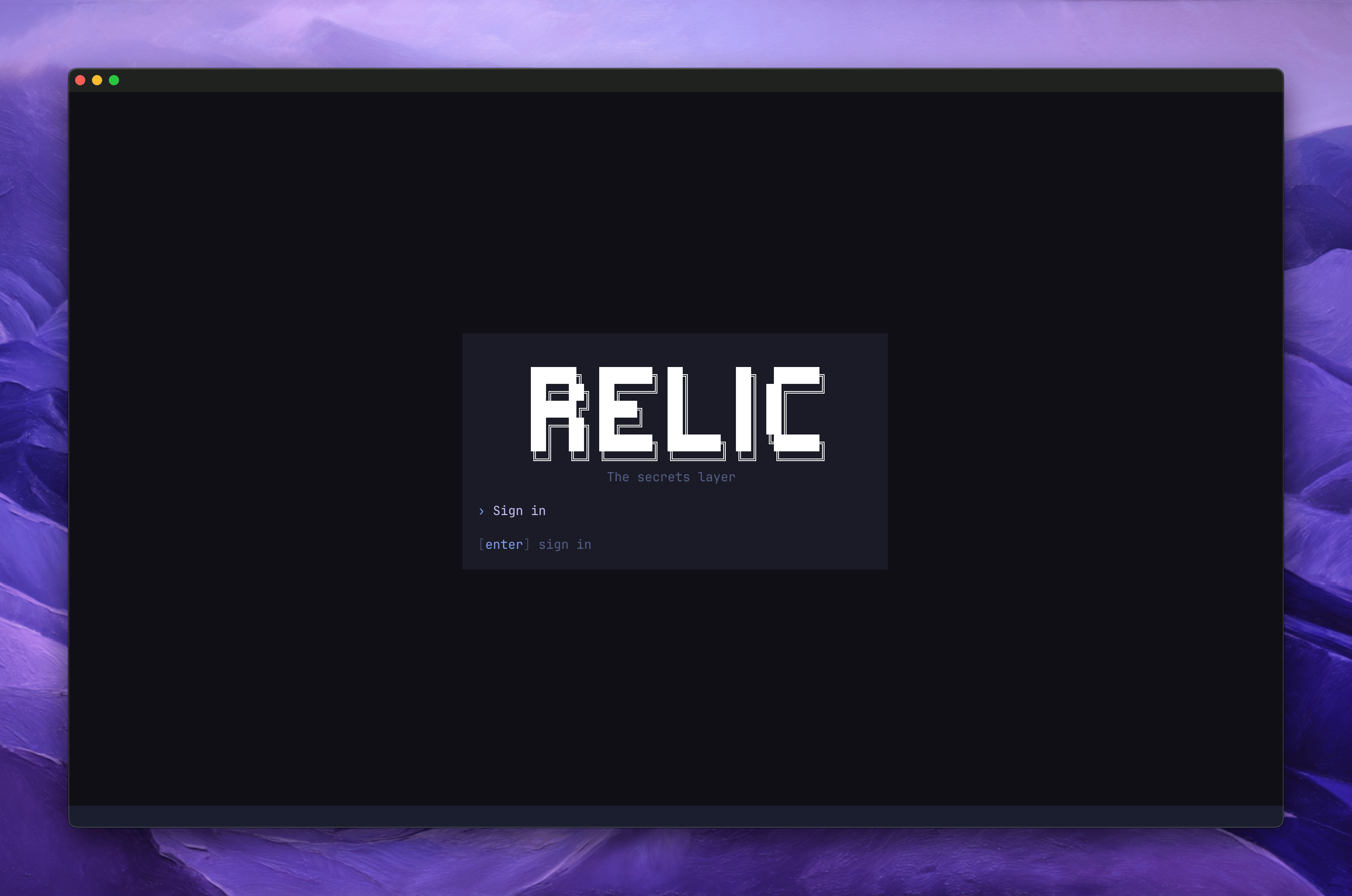 You can also sign in directly from the CLI:
```bash theme={null}
relic login
```
Both methods use device authorization. A browser window opens, you approve the request, and the session is stored locally.
After signing in, the TUI opens your project list. From here you can:
* Create projects
* Add environments (development, staging, production)
* Create and organize secrets within environments
See [TUI guide](/guides/tui) for details.
Navigate to the root of your project and run:
```bash theme={null}
relic init
```
This creates:
* `relic.toml` with your project ID
* `.relic/` directory for local cache
Add `.relic/` to your `.gitignore` to keep cache files out of version control.
Run any command with secrets injected as environment variables:
```bash theme={null}
relic run -e development -- bun run dev
```
Secrets are decrypted locally and passed to your process at runtime. Nothing is written to disk.
See [CLI guide](/guides/cli) for all available options.
This documentation is built and hosted on [Mintlify](https://mintlify.com), a developer documentation platform.
You can also sign in directly from the CLI:
```bash theme={null}
relic login
```
Both methods use device authorization. A browser window opens, you approve the request, and the session is stored locally.
After signing in, the TUI opens your project list. From here you can:
* Create projects
* Add environments (development, staging, production)
* Create and organize secrets within environments
See [TUI guide](/guides/tui) for details.
Navigate to the root of your project and run:
```bash theme={null}
relic init
```
This creates:
* `relic.toml` with your project ID
* `.relic/` directory for local cache
Add `.relic/` to your `.gitignore` to keep cache files out of version control.
Run any command with secrets injected as environment variables:
```bash theme={null}
relic run -e development -- bun run dev
```
Secrets are decrypted locally and passed to your process at runtime. Nothing is written to disk.
See [CLI guide](/guides/cli) for all available options.
This documentation is built and hosted on [Mintlify](https://mintlify.com), a developer documentation platform.