> ## Documentation Index
> Fetch the complete documentation index at: https://docs.withrelic.com/llms.txt
> Use this file to discover all available pages before exploring further.
# TUI
> Interactive terminal interface for managing secrets and projects.
The TUI is Relic's interactive terminal application. It is where you create projects, manage environments, organize secrets, and collaborate with teammates.
```bash theme={null}
relic
```
## Navigation
The TUI uses Vim-inspired keybindings. Use `j`/`k` or arrow keys to move, `Enter` to select, `Esc` to go back, and `?` to open the command palette with all available shortcuts.
## Home
The home screen shows all your projects (owned and shared).
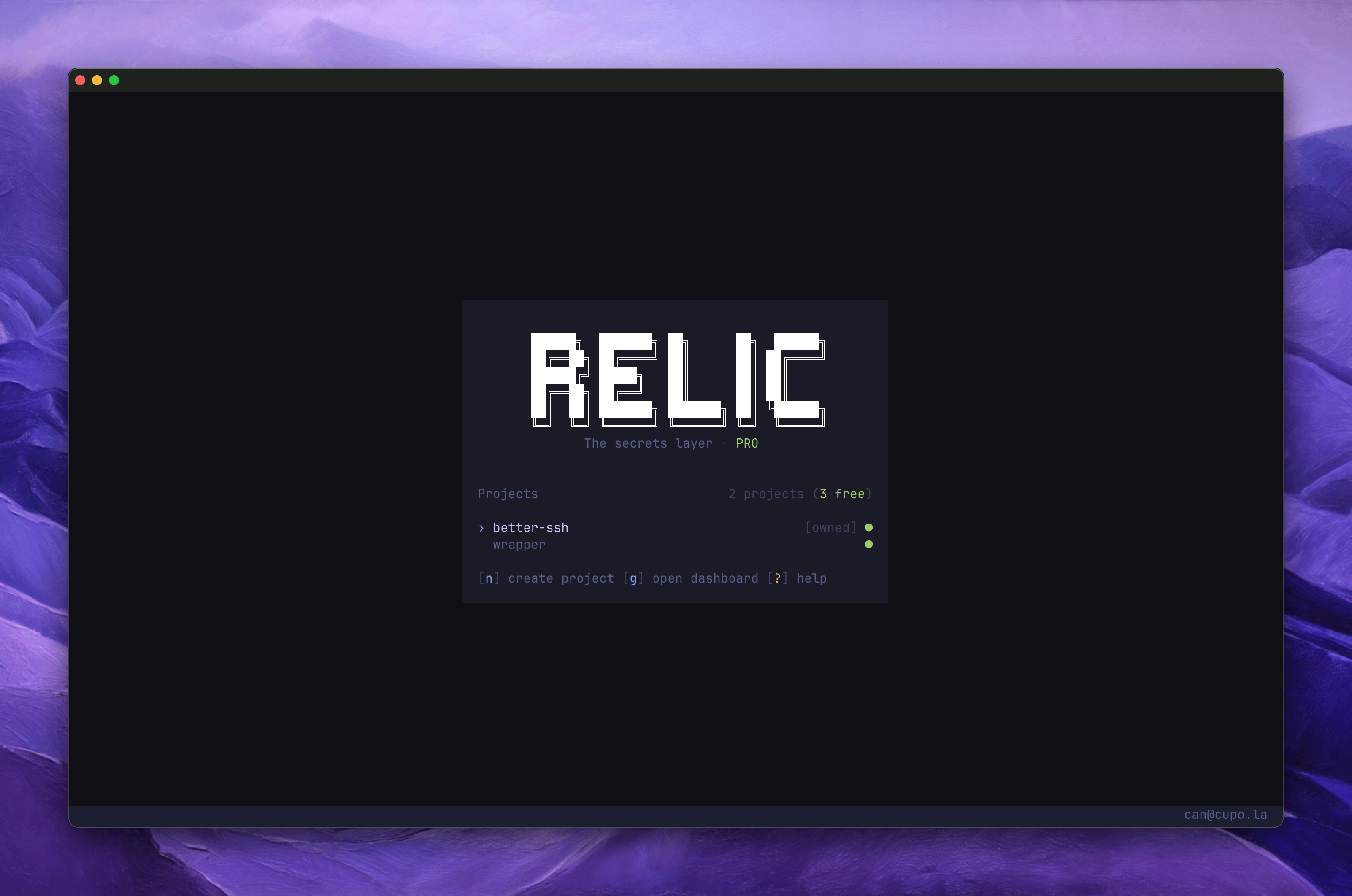 Projects are listed with a status indicator:
| Symbol | Status |
| - | - |
| `●` | Owned |
| `◉` | Shared with you |
| `○` | Archived |
| `Ø` | Restricted (plan limit) |
From here you can create, rename, and archive projects. Press `p` to change your master password.
## Project View
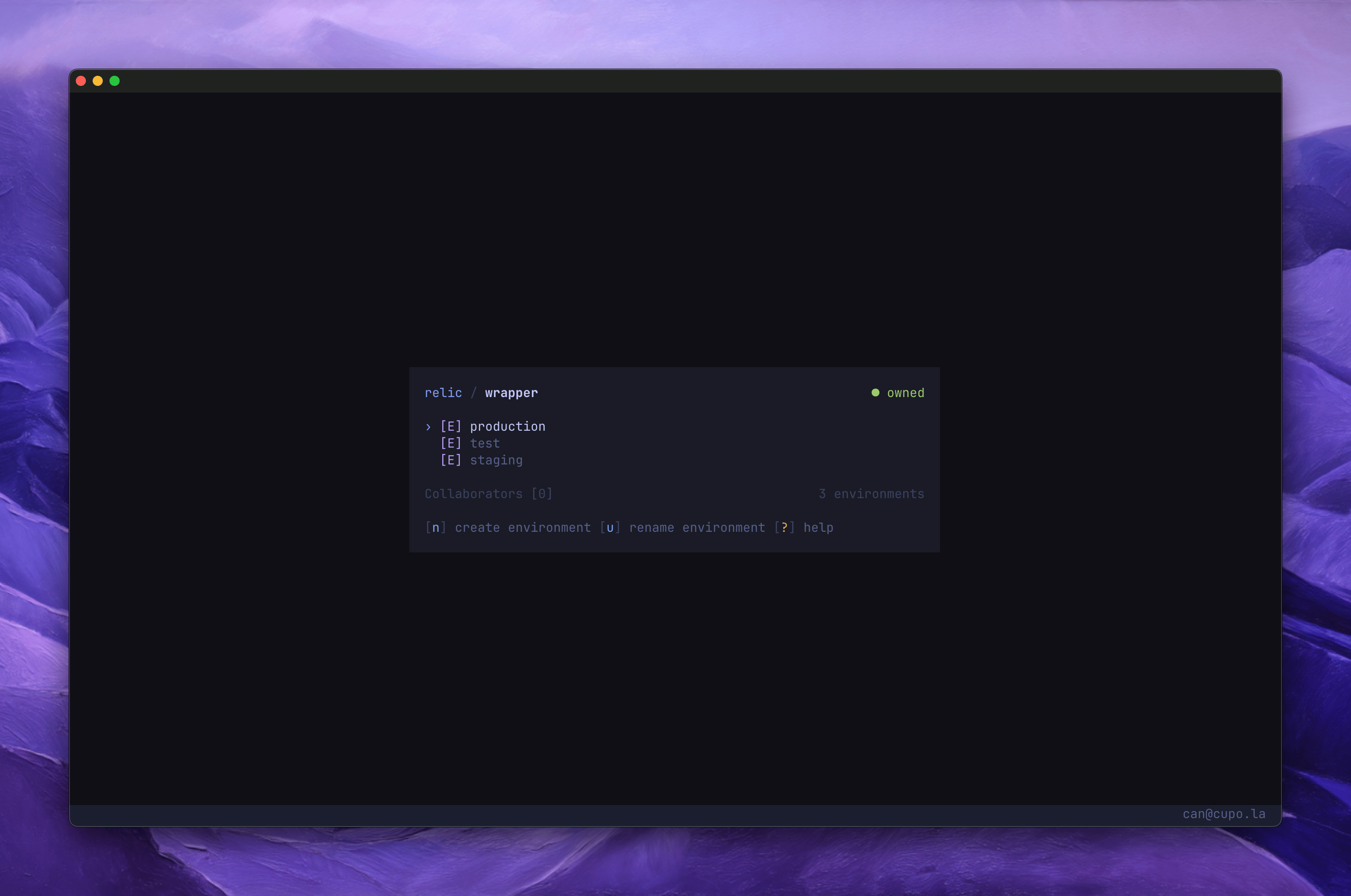
Select a project to see its environments. Navigate deeper into folders and secrets.
Projects are listed with a status indicator:
| Symbol | Status |
| - | - |
| `●` | Owned |
| `◉` | Shared with you |
| `○` | Archived |
| `Ø` | Restricted (plan limit) |
From here you can create, rename, and archive projects. Press `p` to change your master password.
## Project View
Select a project to see its environments. Navigate deeper into folders and secrets.
 ### Environments
Environments separate secrets by deployment target (development, staging, production). Press `n` to create one, `u` to rename, `d` to delete. Enter an environment to see its folders and secrets.
### Folders
Folders are optional groupings inside an environment. Useful for organizing secrets by service (e.g. `database`, `api`). Create, rename, and delete folders with the same shortcuts.
### Secrets
Secrets are displayed with masked values by default. Press `v` to toggle visibility. Press `d` to delete a secret.
### Collaborators
Press `c` from any environment view to manage collaborators. You can add teammates by email, revoke access, or revoke with key rotation. See [Project Collaboration](/guides/project-collaboration) for details.
## Bulk Import
Press `⌥i` (Option+i) to open the bulk import editor. Paste secrets in `.env` or JSON format.
```bash theme={null}
DATABASE_URL=postgres://localhost:5432/mydb
API_KEY=sk_live_abc123
DEBUG=true
```
```json theme={null}
[
{ "key": "DATABASE_URL", "value": "postgres://localhost:5432/mydb" },
{ "key": "API_KEY", "value": "sk_live_abc123", "scope": "server" }
]
```
Toggle format with `⌥j`, save with `⌥s`. Existing secrets with the same key are overwritten.
## Password
### Setup
On first login, you are prompted to create a master password. This password encrypts your private key and is required to decrypt secrets.
### Environments
Environments separate secrets by deployment target (development, staging, production). Press `n` to create one, `u` to rename, `d` to delete. Enter an environment to see its folders and secrets.
### Folders
Folders are optional groupings inside an environment. Useful for organizing secrets by service (e.g. `database`, `api`). Create, rename, and delete folders with the same shortcuts.
### Secrets
Secrets are displayed with masked values by default. Press `v` to toggle visibility. Press `d` to delete a secret.
### Collaborators
Press `c` from any environment view to manage collaborators. You can add teammates by email, revoke access, or revoke with key rotation. See [Project Collaboration](/guides/project-collaboration) for details.
## Bulk Import
Press `⌥i` (Option+i) to open the bulk import editor. Paste secrets in `.env` or JSON format.
```bash theme={null}
DATABASE_URL=postgres://localhost:5432/mydb
API_KEY=sk_live_abc123
DEBUG=true
```
```json theme={null}
[
{ "key": "DATABASE_URL", "value": "postgres://localhost:5432/mydb" },
{ "key": "API_KEY", "value": "sk_live_abc123", "scope": "server" }
]
```
Toggle format with `⌥j`, save with `⌥s`. Existing secrets with the same key are overwritten.
## Password
### Setup
On first login, you are prompted to create a master password. This password encrypts your private key and is required to decrypt secrets.
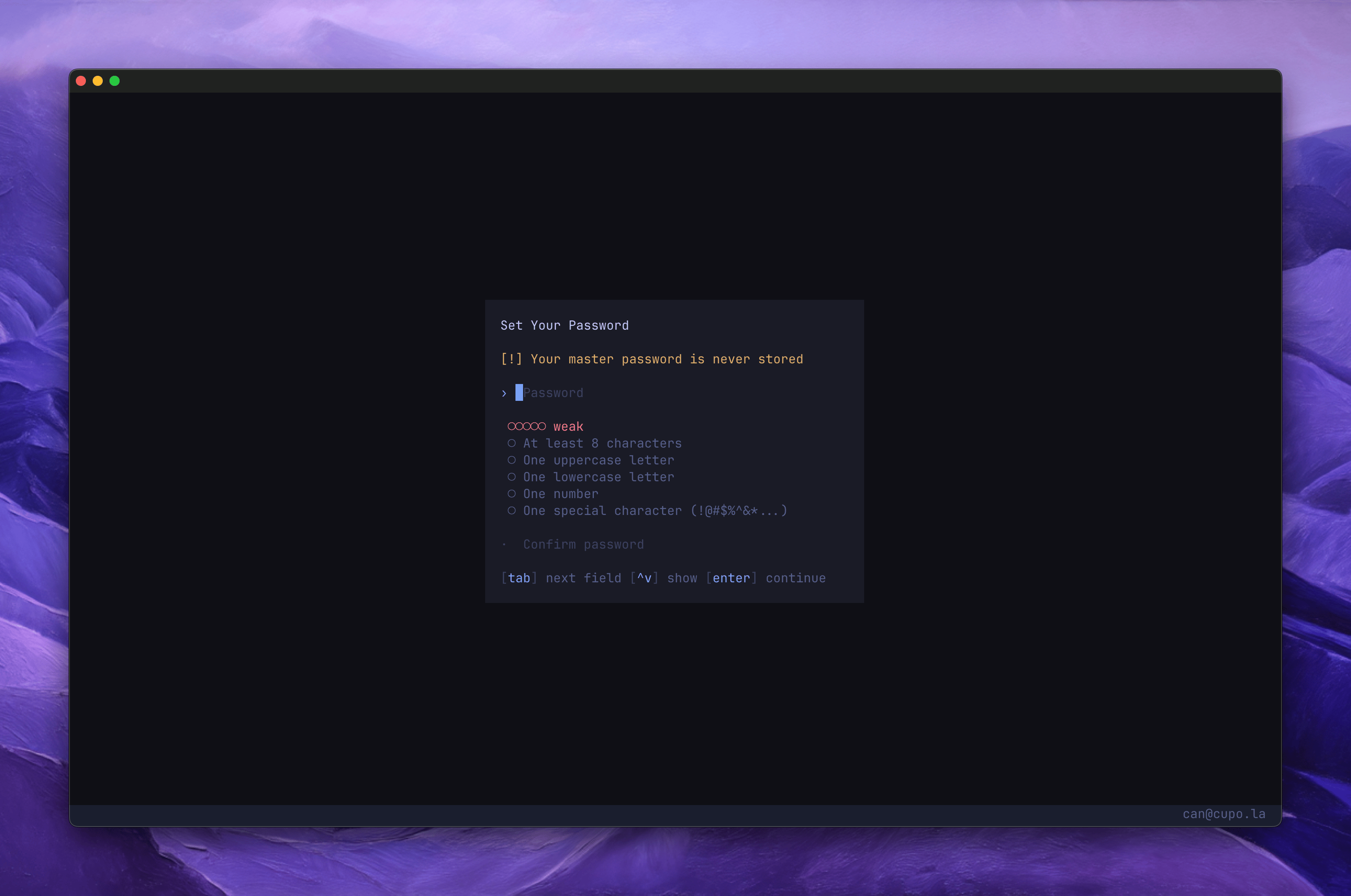 Your master password cannot be recovered. If you lose it, you lose access to all your secrets.
Store it in a safe place.
### Changing your password
Press `p` on the home screen to change your master password. You will need to enter your current password first.
See [Security & Encryption](/configuration/security) for details on how the password protects your keys.
## All Keybindings
See [Keybindings](/configuration/keybindings) for the full shortcut reference.
This documentation is built and hosted on [Mintlify](https://mintlify.com), a developer documentation platform.
Your master password cannot be recovered. If you lose it, you lose access to all your secrets.
Store it in a safe place.
### Changing your password
Press `p` on the home screen to change your master password. You will need to enter your current password first.
See [Security & Encryption](/configuration/security) for details on how the password protects your keys.
## All Keybindings
See [Keybindings](/configuration/keybindings) for the full shortcut reference.
This documentation is built and hosted on [Mintlify](https://mintlify.com), a developer documentation platform.